The Roku Streaming Stick Plus 3830R is worth considering for a bedroom TV if you want to stream with headphones while keeping your phone out of the audio path. Its current software supports direct Bluetooth listening. If two people want to listen together, the Roku mobile app is the route to plan around. [1][2][3]
That makes the buying decision fairly specific: check who will listen, how the stick will receive power, and whether its picture formats suit your television. A compact player is only convenient when the whole setup fits.
Start with the exact stick
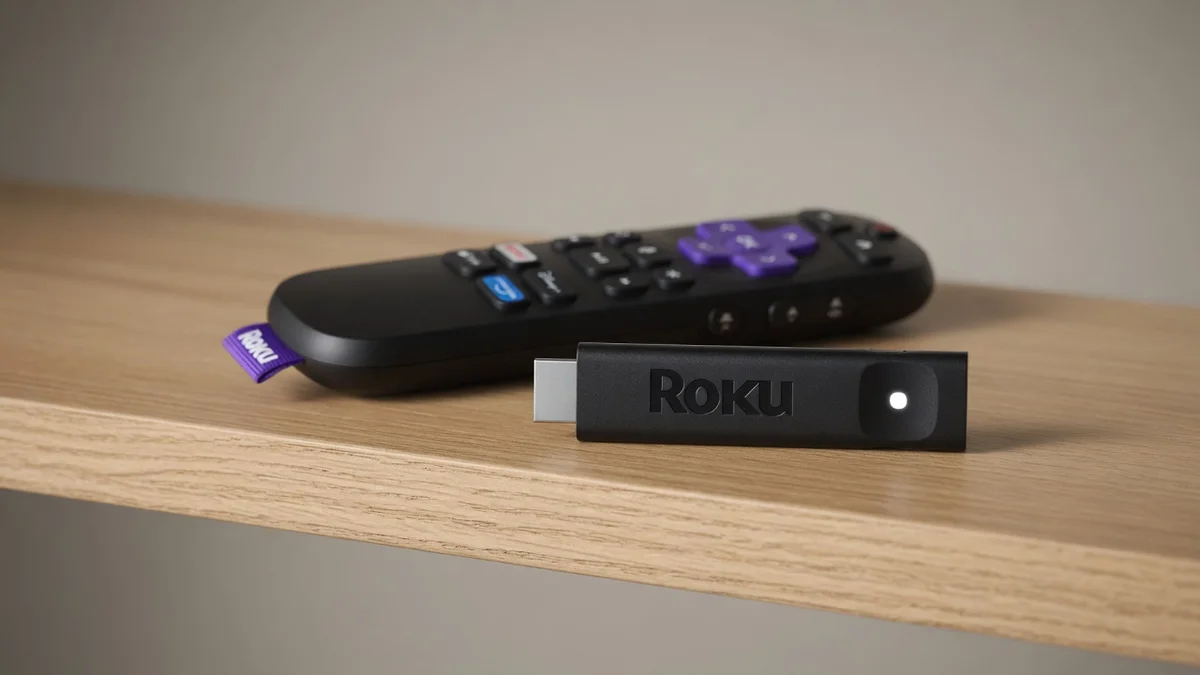
This guide covers the 2025 Streaming Stick Plus, retail model 3830R. Roku's support page shortens that to 3830; its developer hardware table uses 3830X. Match the product name, year and model together. Similar names elsewhere in the Roku range are easy to confuse. [1][2][4]
Roku lists the player, Voice Remote with TV controls, two pre-installed AAA batteries and a USB-C-to-USB-A power cable in the box. Headphones and a wall power adapter are not listed. TV power and volume control work with most TVs, so keep your TV remote until you have checked yours. [1]
The recommendation here is a fit judgment: this model makes sense for a solo viewer who wants a compact streamer and direct headphone pairing. It is less straightforward for shared listening, which adds phones or tablets to the setup. We make no claim about measured audio delay, wireless range or long-term reliability.
Choose your headphone route
Roku remote app
One listener: connect directly to the stick
Roku's current compatibility list includes the Streaming Stick Plus 3830. It specifies headphones supporting Bluetooth 4.2 or later. The headphones pair with the player, so a phone does not need to relay the sound. Only one pair can connect directly at a time. [2]
On the TV, open Settings, then Remotes & devices, then Wireless headphones. Choose the option to add headphones, put yours into pairing mode and select them when found. The initial pairing and a later reconnection are separate steps; check that the headphones are connected before troubleshooting an apparently silent show. Roku's linked instructions cover reconnection and automatic detection. [2]
Older launch coverage can give the wrong answer about this feature. Roku's software history says Bluetooth Headphone Mode was added to Streaming Stick and Streaming Stick Plus in November 2025. Current support and the exact product page both include it. Let setup updates finish before checking the menu. [1][5][10]
Shared listening: use the phone app
For this route, the headphones connect to each person's phone or tablet. The Roku remote app communicates with the player over the same Wi-Fi network. Both wired headphones and headphones paired to the mobile device can be used. In the app's Remote view, the headphone control starts listening. [3]
Roku supports up to four mobile devices listening at once. That is a limit on app-connected devices, not four direct Bluetooth connections to the stick. Each listener needs their own mobile device and headphones. TV-speaker audio is unavailable while mobile Headphone Mode is active. [3]
Before putting headphones on, lower the volume to a safe level. Start with a short piece of the content you intend to watch. If the sound and picture do not line up with Bluetooth headphones connected through the mobile app, Roku provides an Adjust audio delay control in the app's Remote settings. No wireless setup deserves an automatic promise of zero delay. [3][6]
Keep the audio promise narrow
These routes are for content playing through the Roku stick. Do not buy it expecting to send a game console, your TV's built-in apps or its antenna tuner to the same headphones. The stick sends its own picture and sound to an HDMI input; it is not a general audio receiver for everything connected to the TV. [1][2]
If the mobile app has no sound, first check that it is connected to the correct Roku and that the headphones are connected to the phone. With direct Bluetooth, check the player's headphone connection instead. Those are different places to look, even though the headphones may look identical. Roku also suggests checking the headphones on another device when dropouts persist. [6]
Turn Headphone Mode on before starting a movie if you want to avoid the brief playback restart that can occur when Roku resynchronizes an already-playing video with headphone audio. This is setup guidance, not evidence that every pairing will perform the same way. [6]
Give the stick reliable power
The stick plugs into an HDMI input.
Included USB-C-to-USB-A cable → TV USB or suitable wall adapter.
The 3830R takes power through USB-C and lists a 5 V / 1 A input. Its included cable ends in USB-A on the power-source side. HDMI carries the picture to the television; the separate USB connection supplies power. [1]
A TV USB port is a tidy starting point. But Roku specifically warns that some ports cannot supply enough power, including for the Stick Plus. If you get a low-power warning, use the supplied Roku cable, try another TV USB port if one is available, or follow Roku's guidance for wall power with a suitable 5 V / 1 A adapter. The current box list does not include that adapter. [1][7]
TV power behavior matters too. If the television cuts power to its USB port when it turns off or enters standby, the stick has to start again when power returns. A continuously powered wall connection avoids that dependency. Check your television rather than assuming every USB port behaves alike. [8]
Treat a solid red light differently from a low-power warning. Carefully unplug the player, which may be hot, and let it cool for at least 10 minutes. Follow Roku’s overheating guidance, including improving ventilation; stop using it and contact support if overheating persists after the prescribed retry. [12]
If low-power problems continue with suitable wall power, contact Roku support. Avoid long, low-quality USB extension cables. [7]
Check the picture before buying
The Plus supports up to 4K at 60 frames per second, with HDR10, HDR10+ and HLG. Roku's hardware table does not list Dolby Vision for this model. If Dolby Vision is a requirement, pause here and compare exact models before choosing. [4]
For 4K/HDR, the TV and content must support the format, and the HDMI path must support HDCP 2.2. That includes an intervening receiver or splitter. A compatible stick cannot turn an HD television into a 4K panel or remove a limitation elsewhere in the connection. Check the TV's manual for the actual input you will use. [1][9]
Before you order
- Match Streaming Stick Plus, 2025 and 3830R on the offer you choose.
- For one direct listener, check your headphone's Bluetooth specification. For shared listening, plan for the mobile app on each listener's device.
- Check for an HDMI input and a workable USB power source. Leave room for a suitable wall adapter if the TV port is unreliable.
- Confirm the picture formats and streaming services you actually want. Paid subscriptions, rentals and purchases are separate from buying the player.
- Plan to complete setup on your own Roku account. An internet connection and account link are required. [1][2][3][4][7][10]
As an Amazon Associate I earn from qualifying purchases.
Check price on Amazon: Roku Streaming Stick Plus (2025), model 3830R. Match the selected product and package before ordering.
Quick answers
Can two people connect headphones directly at the same time?
Roku supports one directly connected pair. For multiple listeners, use its mobile-app route, which supports up to four mobile devices. [2][3]
Will my television's speakers keep playing?
Roku explicitly says the TV speakers are silent during mobile Headphone Mode. This guide makes no promise of simultaneous speaker audio with direct Bluetooth. If that is essential, verify the exact setup before buying. [3]
Does it include a headphone-jack remote?
The listed remote is the standard Roku Voice Remote with TV controls. The package does not promise a headphone jack. Plan around direct Bluetooth or the mobile app instead of assuming a wired remote connection. [1]
Do I pay Roku to activate it?
Roku account creation, device activation and official support are free. Paid entertainment remains separate. Follow the setup flow on the TV; if a page asks for an activation fee, stop and use Roku's official support. Roku warns that impostor pages can appear in paid search results. [10][11]
Sources
Manufacturer and support sources checked October 12, 2026. Software features can change. Diagrams in the HTML are original explanatory graphics, not product photographs or performance tests.
- Roku Streaming Stick Plus: US model and box contents
- Roku: direct Bluetooth Headphone Mode
- Roku: mobile-app Headphone Mode
- Roku: hardware specifications
- Roku: OS feature history
- Roku: resolve a Headphone Mode issue
- Roku: low-power troubleshooting
- Roku: player restarts when TV turns on
- Roku: HDCP 2.2 requirements
- Roku: activation and account linking
- Roku: activation and support scam guidance
- Roku: overheating guidance